What to Look for in Office-to-PDF Software



A vendor-neutral buyer’s checklist, by UniDoc. We make a Go SDK (UniOffice and UniPDF) and we point out where it fits and where it does not.
Converting Word, Excel, and PowerPoint files to PDF looks like a solved, commodity problem until you have to choose a tool for a real workload. A lawyer exporting one contract and a platform converting a hundred thousand uploads a day need completely different things, and most “best converter” lists blur that distinction. The right choice depends on who is converting, where the conversion runs, and what happens to the documents along the way.
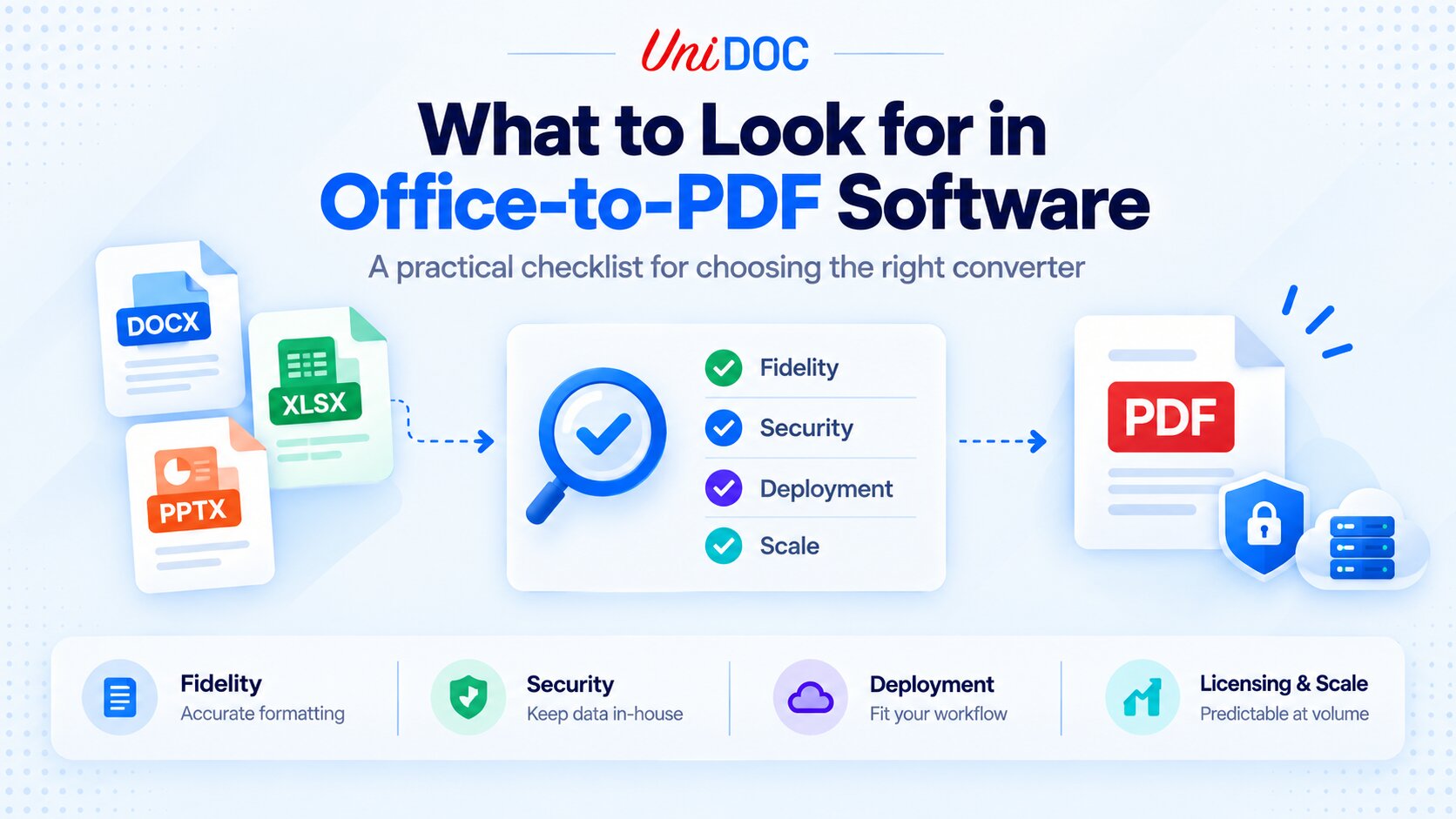
This guide is a practical checklist for evaluating Office-to-PDF software against the things that actually matter in production: fidelity, deployment model, security, format coverage, automation, licensing, and support. It starts by separating the categories of tool, because picking the wrong category is the most expensive mistake, then gives the criteria to judge any option within it.
Know Which Category You Need First
“Office-to-PDF software” covers several quite different kinds of product, and a feature that is essential in one is irrelevant in another.
- Desktop applications (Adobe Acrobat, Soda PDF, and similar) convert interactively on one machine. They suit people who convert documents by hand and want a UI, and they are licensed per seat. Some, such as Acrobat, do offer batch actions, but they are built around a person at a screen, not an automated pipeline.
- Online converters (Smallpdf, iLovePDF, and many others) convert in a browser with nothing to install. They are convenient for one-off jobs, but most upload your file to a third party, which is often unacceptable for confidential or regulated documents. A few offer desktop or on-premise options, so check where the conversion actually happens.
- Open-source engines (LibreOffice in headless mode, or wrappers around it like Gotenberg) are a common backend choice: free to license, high fidelity, and self-hosted. The trade-off is that you run and supervise a full office suite or a container service, which is a real operational footprint.
- Server-side SDKs and libraries (Apryse, Nutrient, Aspose, and Go options like UniOffice and UniPDF from UniDoc) embed conversion into your own application. They are the right category when conversion has to be automated, run at scale, and stay inside your own infrastructure without a separate engine to supervise.
Decide the category first. If you need a click-to-convert utility, the checklist below mostly reduces to “does it render my documents well.” If you are building conversion into a product or a pipeline, every item matters.
The Checklist: What to Evaluate
1. Conversion Fidelity
This is the whole point, and the hardest thing to get right. Office formats are complex, so test every candidate against your real documents, not a vendor demo: check layout, pagination, fonts (especially non-Latin and CJK scripts), tables, embedded images, charts, headers and footers. For spreadsheets, check how wide sheets and print areas are handled. Fidelity is where tools genuinely differ, and the only honest way to compare is to convert a representative sample and open the results.
2. Deployment Model and Dependencies
Ask what the tool actually needs to run. Some converters shell out to a hidden copy of Microsoft Office or LibreOffice, or round-trip your files through a cloud service or a headless browser. Each of those is an operational and security consideration: an Office install you cannot run headless cleanly, a LibreOffice process to supervise, or a network hop to secure. A self-contained converter that runs in your own process, with no external engine, is simpler to deploy and reason about, especially in containers or locked-down environments; a separate engine can be higher-fidelity but adds moving parts.
3. Format Coverage
Confirm the formats you need on both ends. On the input side, that usually means the modern Office Open XML formats (.docx, .xlsx, .pptx); if you still receive legacy binary files (.doc, .xls, .ppt), check whether the tool reads them or whether you need an upstream step to convert them first, because support varies by vendor. On the output side, if you archive documents, look at PDF/A specifically, and confirm which level (1b, 2b, or 3b) and whether the tool produces it during conversion or as a separate post-processing step.
4. Document Features and Robust Inputs
Beyond plain rendering, confirm the tool handles what your documents actually contain and what your output must support: digital signatures and encryption, password-protected inputs, and graceful handling of corrupt or malformed files instead of a crash. If you are bound by accessibility rules, check for tagged-PDF or PDF/UA output. And if files travel or are stored at volume, check font subsetting, which keeps output size down.
5. Automation and Scale
For anything beyond manual use, you need an API or SDK, not a UI. Look for programmatic conversion you can call from your own code, batch processing, and safe concurrency so a large job can use multiple cores. A tool that only converts through a desktop window, or one conversion at a time, will not survive contact with a real workload.
6. Security and Data Residency
Decide early whether your documents can leave your infrastructure. Online converters and many cloud APIs send the file to a third party, which may be fine for public material and unacceptable for contracts, financial statements, or health records. If your data must stay in-house, you need a tool that converts in-process or on hardware you control, ideally one that can run fully offline for air-gapped or regulated deployments. This single question rules out whole categories for sensitive workloads.
7. Licensing and Cost Model
The pricing model matters as much as the price. Desktop tools charge per seat, open-source engines are free to license but cost operational effort, many cloud converters charge per conversion or by credits, and SDKs charge a library or server license. Per-conversion pricing is predictable for small volumes and can become hard to forecast at high volume; a flat library license is the opposite. Check what a free tier includes, and whether a conversion pipeline needs more than one component licensed (a converter that renders through a separate PDF engine may require a license for both).
8. Vendor Accountability and Support
If conversion is part of a product, it will eventually face a procurement or security review. What clears that review is not whether a dependency is open or closed, since any dependency can be listed in a software bill of materials (SBOM); it is whether there is a named security contact, a disclosure process, a support agreement or SLA, and sometimes indemnification. A commercial vendor often provides those out of the box, but well-maintained open-source projects (LibreOffice among them) are routinely approved too. Weigh the support model, not just the license.
9. Performance, Footprint, and Blast Radius
At scale, memory per conversion and behavior under concurrency drive your hosting bill and your failure modes, so measure peak memory on your largest real documents before you commit. There is a genuine trade-off here. A converter that runs in-process is simple to deploy and has no sidecar, but a malformed or huge document can exhaust memory in your whole service, and Go’s GOMEMLIMIT is a soft, process-wide limit, not a per-conversion cap. An external worker process is more to operate but easier to sandbox and to bound, so one bad file takes down a worker, not the service. Choose based on how much blast radius you can tolerate.
How to Run a Fair Test
Most of the criteria above reduce to one exercise, and it is the most useful thing you can do before choosing:
- Gather 20 to 30 real documents that represent your actual mix: long reports, wide spreadsheets, decks, non-Latin and CJK text, tables, embedded images, and anything with a table of contents or form fields.
- Convert them with each candidate and open every result. Score each on a simple pass/fail rubric: layout intact, fonts correct, tables and images placed, no missing or garbled text.
- Measure peak memory on the largest files, and note anything that crashes or hangs.
The tool that wins your own sample is the right one, regardless of which “best converter” list it appears on.
Matching the Criteria to Your Use Case
The checklist resolves quickly once you are honest about the job:
| Use case | Best fit | Judge mainly on |
|---|---|---|
| Occasional manual conversion, non-technical user | Desktop app or reputable online tool | Fidelity, ease of use |
| Confidential or regulated documents | On-premise desktop tool, self-hosted engine, or SDK | Data residency, offline operation |
| Automated or high-volume inside a product | Server-side SDK | API, batch, licensing model |
| Go backend, data stays in-process | Go SDK | In-process rendering, offline licensing |
Where a Go SDK Like UniDoc Fits
For the last row, a team converting Office documents inside a Go service, UniOffice and UniPDF from UniDoc are built for the server-side criteria above. They convert the modern Office Open XML formats (.docx, .xlsx, .pptx) to PDF natively in Go, with no Microsoft Office, no LibreOffice, and no headless browser in the pipeline, so the converter compiles into your binary and runs in-process, keeping documents inside your infrastructure. UniOffice reads only the modern OOXML formats, not the legacy binary .doc, .xls, and .ppt, which need an upstream conversion step first.
Being honest about the edges, which is the point of a checklist like this:
- Fonts. Any font that is not one of the built-in base fonts and not embedded in the document must be registered from a TTF file, or text falls back to Helvetica, which matters most for CJK and other non-Latin scripts. Plan to ship and register the fonts your documents rely on.
- Fidelity. The output is UniOffice’s own rendering, not Word’s, and most field codes are not evaluated, so a generated table of contents can come out blank. Test your real documents, as this guide recommends for every tool.
- PDF/A. The converter does not emit PDF/A by itself. UniPDF’s
pdfapackage applies and verifies PDF/A-1 (1a, 1b), PDF/A-2 (2a, 2b, 2u) and PDF/A-3 (3a, 3b, 3u), plus PDF/A-4. You apply the profile on the PDF writer, either when you save the converted document or later on a finished PDF, so treat archival output as an explicit step, not a conversion flag, and verify the result. - Licensing. Office-to-PDF uses both libraries, UniOffice for the document and UniPDF for the rendering, so both must be licensed; a single metered key covers both. The free trial uses that metered key, which reports usage over the network, so for an air-gapped evaluation ask for the offline key, which makes no outbound calls at runtime.
Within those bounds it fits a specific niche well: conversion that your backend does, in Go, at volume, without shipping documents to a third party, from a named commercial vendor you can reach for support. If you want to convert a file by clicking a button, a desktop tool is a better fit. For implementation details and the dual-license setup, see the UniOffice Document to PDF guide.
Frequently Asked Questions
What is the best Office-to-PDF software?
There is no single best; it depends on the job. Decide the category first (desktop app, online tool, open-source engine, or server-side SDK), then compare your shortlist on fidelity, deployment, security, and licensing, tested against your own documents.
Do you need Microsoft Office installed to convert Office files to PDF?
Not necessarily. Many SDKs and engines render Office files without Microsoft Office, but some tools quietly depend on Office or LibreOffice running in the background, so confirm what a candidate actually requires.
Is online Office-to-PDF conversion safe for confidential documents?
Most online converters upload your file to a third-party service, so for contracts, financial data, or regulated records they are usually the wrong choice. Prefer a tool that converts on infrastructure you control and can run offline when required.
How do you convert Office to PDF at scale or inside a backend?
Use a server-side SDK or engine with a programmatic API rather than a desktop UI, so you can batch and run conversions concurrently. Check how it handles memory and concurrency on large documents before committing.
Does the tool need to support PDF/A?
If you archive or need long-term, self-contained documents, yes, and the level matters (1b, 2b, or 3b). Also check whether PDF/A is produced during conversion or as a separate post-processing step, since the two differ operationally.
Conclusion
Office-to-PDF software only looks like a commodity. The moment conversion moves from a person clicking a button to a system doing it automatically, the category you choose and the criteria you apply decide whether the output is correct, your data stays safe, and your costs stay predictable.
Separate the categories first, judge your shortlist on the checklist above, and settle it with a test on your own documents rather than a vendor’s demo. For teams whose answer is “a Go backend, converting in-process, without sending documents anywhere,” UniOffice and UniPDF cover that case, within the limits named above. For every other case, the checklist is the honest way to pick.
Evaluating Office-to-PDF for a Go service? Read the docs or request a trial (ask for the offline key if you are evaluating air-gapped).
Further Reading
- UniOffice Document to PDF guide for the official conversion walkthrough and current import paths
- UniOffice product overview for the full DOCX, XLSX, and PPTX feature set
- PDF/A standard in UniPDF for an introduction to PDF/A in UniPDF
- UniPDF PDF/A examples for runnable samples covering PDF/A-1 through PDF/A-4
- UniDoc pricing for the metered and offline licensing options