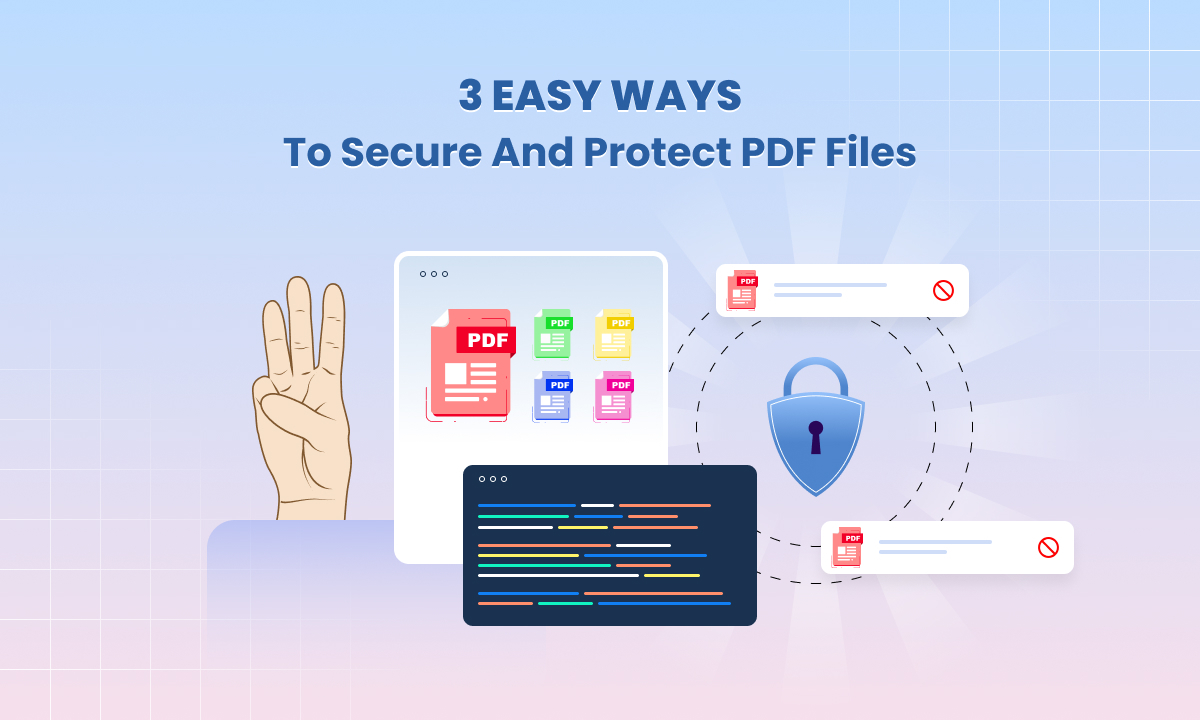
3 Easy Ways to Secure and Protect PDF Files



 PDF files are one of the most common ways to share documents. People use them for school work, business papers and even legal records. But not all files are safe. An open PDF can be copied or changed without you even knowing. This puts private details at risk.
The good news is that you can protect PDF files with a few easy steps. With tools like
PDF encryption
Secure PDF settings
Password protect PDFs
You can make sure only the right people can see or use your file. These options add a strong layer of PDF file security and stop others from editing or misusing your content.
In this blog, we will show you three easy ways to keep your files safe.
Why You Need to Protect PDF Files
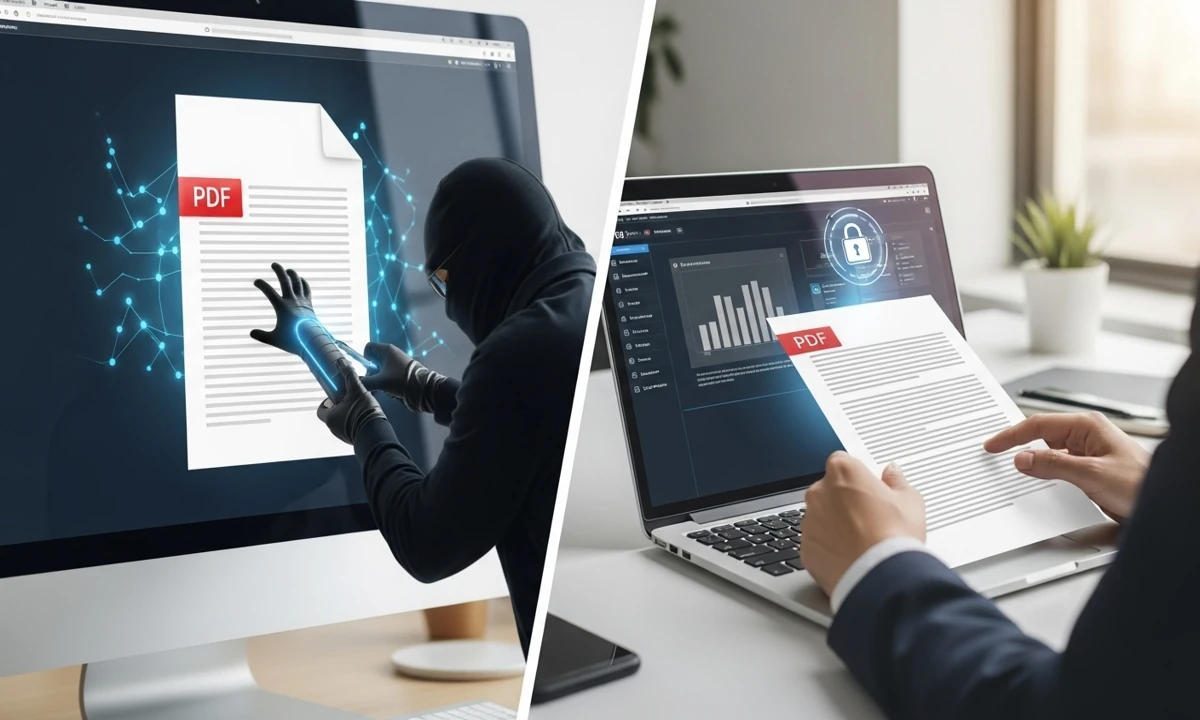
When you share a PDF without security, it is like leaving your door open. Anyone can take a look or even change the content. This can be a big risk if the file holds private or important data.
Let us look at the main reasons why PDF file security matters.
Risks of Unsecured PDFs
Unauthorized sharing
A file can be passed around without your consent. Once it is out, you lose control of who reads it.
Copying or editing sensitive content
Without restrict PDF editing or prevent PDF copying, anyone can take your words or numbers and use them in the wrong way.
Risk of fraud or misuse
Open files can be changed and used for scams. For example, invoices or contracts can be altered to trick others.
Benefits of Securing PDFs
Keep data safe
PDF encryption makes sure that only people with the right code or key can open the file.
Ensure only the right people access the file
With PDF file permissions and secure document sharing you can control who views or prints the document.
Meet compliance needs in business
Many industries have strict rules. Using PDF protection tools helps you follow these rules and avoid problems.
Method 1: Password Protect PDFs with Encryption
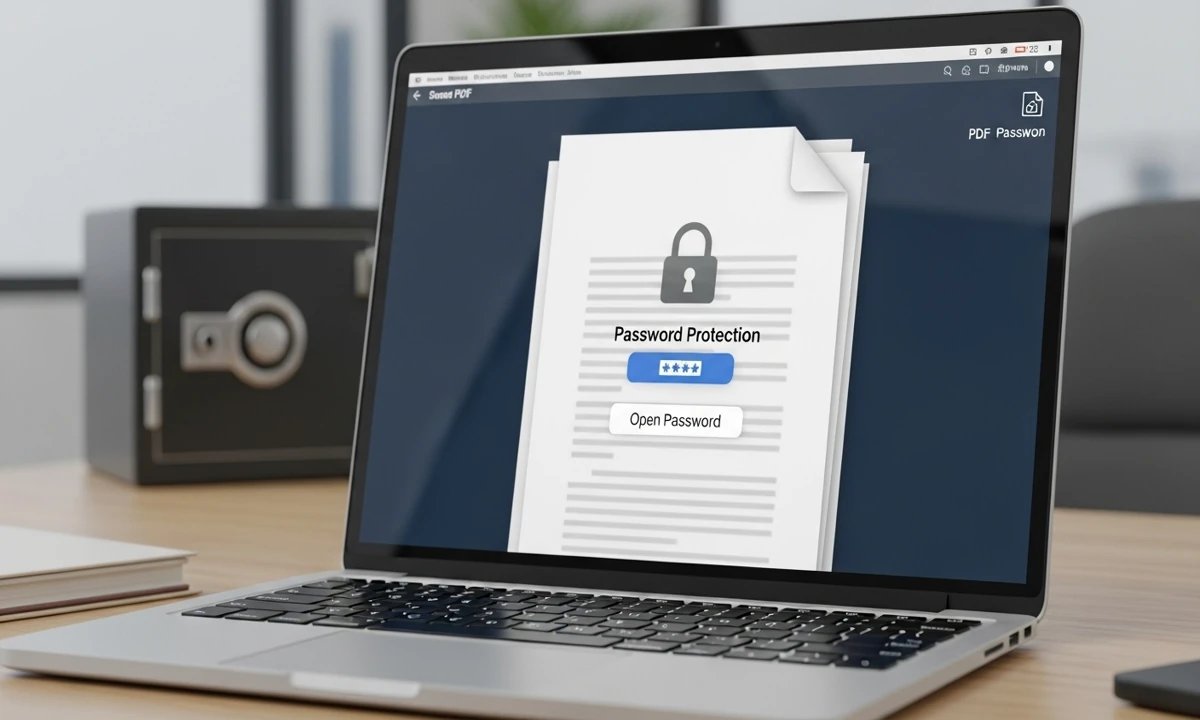
The first and most common way to protect PDF files is by adding a password. This step stops strangers from opening or changing your document. You can set two types of passwords depending on the level of control you need.
Add Open Passwords
An open password blocks the file from opening unless the right code is entered. This is useful when you share secure PDF files that hold personal or financial data. For example, you may want to lock invoices or salary slips so that only the person you send them to can read them.
Add Permission Passwords
A permission password does not stop the file from opening but it does limit what someone can do once the file is open. You can restrict PDF editing, copying, or printing. This is helpful when you need to share reports but still want to keep control of how others use them.
Tools to Use
You can set passwords with different tools.
Adobe Acrobat gives a simple interface for adding both open and permission passwords.
UniPDF has a clear guide here that shows how to lock files using code. This is a good choice for developers who want automation.
Command-line scripts are also an option if you prefer a lightweight and quick method without opening a large program.
Here is an example Go program using UniPDF. It shows how you can set both an open password and a permission password:
/*
 * Example from https://github.com/unidoc/unipdf-examples/blob/master/security/pdf_protect.go
 *
 * Protects PDF files by setting a password on it. This example both sets user
 * and opening password and hard-codes the protection bits here, but easily adjusted
 * in the code here although not on the command line.
 *
 * The user-pass is a password required to view the file with the access specified by certain permission flags (specified
 * in the code example below), whereas the owner pass is needed to have full access to the file.
 * See pdf_check_permissions.go for an example about checking the permissions for a given PDF file.
 *
 * If anyone is supposed to be able to read the PDF under the given access restrictions, then the user password should
 * be left empty ("").
 *
 * Run as: go run pdf_protect.go input.pdf <user-pass> <owner-pass> output.pdf
 * Sets a user and owner password for the PDF.featured
 */

package main

import (
	"fmt"
	"os"

	"github.com/unidoc/unipdf/v4/model"

	"github.com/unidoc/unipdf/v4/common/license"
	"github.com/unidoc/unipdf/v4/core/security"
)

func init() {
	// Make sure to load your metered License API key prior to using the library.
	// If you need a key, you can sign up and create a free one at https://cloud.unidoc.io
	err := license.SetMeteredKey(os.Getenv(`UNIDOC_LICENSE_API_KEY`))
	if err != nil {
		panic(err)
	}
}

func main() {
	if len(os.Args) < 5 {
		fmt.Println("Usage: go run pdf_protect.go input.pdf <user-pass> <owner-pass> output.pdf")
		fmt.Println("Sets a user and owner password for the PDF.")
		os.Exit(1)
	}

	inputPath := os.Args[1]
	userPassword := os.Args[2]
	ownerPassword := os.Args[3]
	outputPath := os.Args[4]

	err := protectPdf(inputPath, outputPath, userPassword, ownerPassword)
	if err != nil {
		fmt.Printf("Error: %v\n", err)
		os.Exit(1)
	}

	fmt.Printf("Complete, see output file: %s\n", outputPath)
}

func protectPdf(inputPath string, outputPath string, userPassword, ownerPassword string) error {
	permissions := security.PermPrinting | // Allow printing with low quality
		security.PermFullPrintQuality |
		security.PermModify | // Allow modifications.
		security.PermAnnotate | // Allow annotations.
		security.PermFillForms |
		security.PermRotateInsert | // Allow modifying page order, rotating pages etc.
		security.PermExtractGraphics | // Allow extracting graphics.
		security.PermDisabilityExtract // Allow extracting graphics (accessibility)

	encryptOptions := &model.EncryptOptions{
		Permissions: permissions,
	}

	f, err := os.Open(inputPath)
	if err != nil {
		return err
	}
	defer f.Close()

	pdfReader, err := model.NewPdfReader(f)
	if err != nil {
		return err
	}

	isEncrypted, err := pdfReader.IsEncrypted()
	if err != nil {
		return err
	}
	if isEncrypted {
		return fmt.Errorf("The PDF is already locked (need to unlock first)")
	}

	// Generate a PdfWriter instance from existing PdfReader.
	pdfWriter, err := pdfReader.ToWriter(nil)
	if err != nil {
		return err
	}

	// Encrypt document before writing to file.
	err = pdfWriter.Encrypt([]byte(userPassword), []byte(ownerPassword), encryptOptions)
	if err != nil {
		return err
	}

	// Write to file.
	err = pdfWriter.WriteToFile(outputPath)
	return err
}
Method 2: Use Digital Signatures for Extra Security
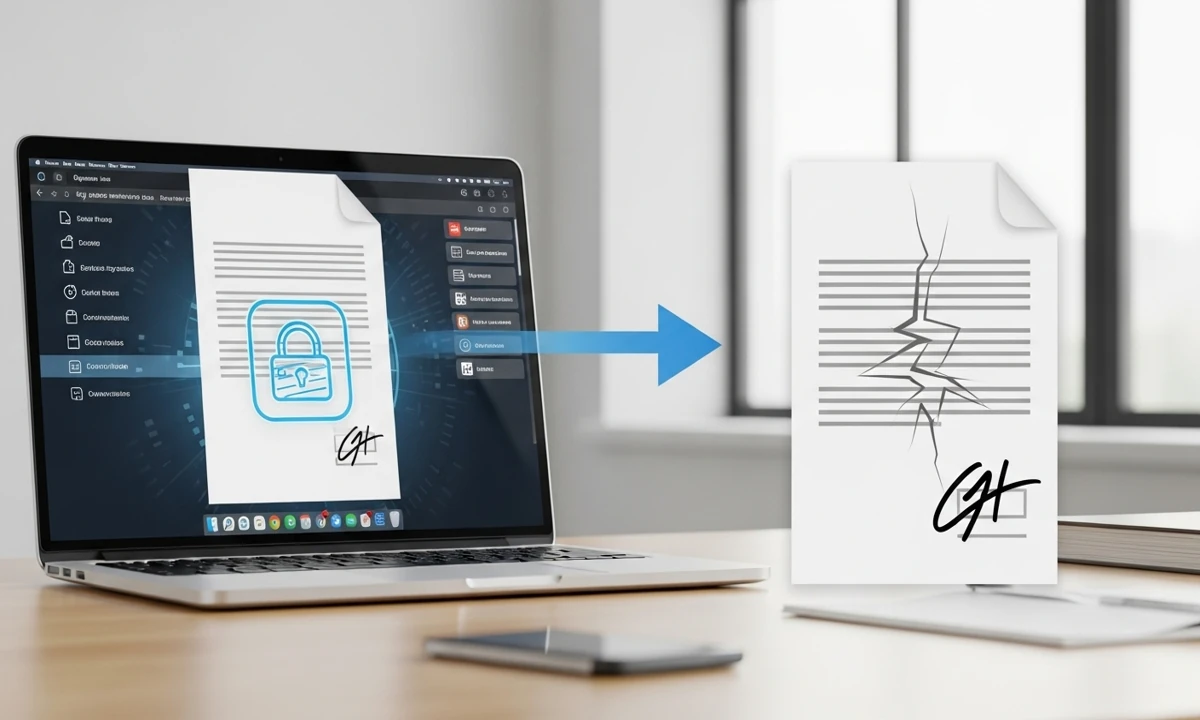 Passwords are strong but** digital signatures** take **PDF file security** to the next level. They not only lock the file but also prove that the document is real and has not been changed.
What Are Digital Signatures?
A digital signature is like a stamp added to your file. It confirms the sender and makes sure the content is safe. If someone edits the file after it is signed, the signature breaks and you will know the file is not valid anymore. This helps build trust in shared secure PDF documents.
Benefits of Signatures
Authenticates the sender — you know who created or approved the file.
Protects the integrity of content — no edits can hide without breaking the signature.
Complies with legal standards — many contracts and official forms accept digital signatures as proof.
How to Add Them
You can add digital signatures with simple tools:
Adobe Acrobat has a built-in option for signing.
UniPDF offers programmatic ways to sign files. Developers can use Go code to add signatures.
Here is an example from UniPDF that shows how to sign a PDF twice with visible notes:
/*
 * This example showcases how to append a new page with signature to a PDF document.
 * The file is signed using a private/public key pair.
 *
 * $ ./pdf_sign_encrypted_pdf <INPUT_PDF_PATH> <OUTPUT_PDF_PATH>
 */
package main

import (
	"bytes"
	"crypto/rand"
	"crypto/rsa"
	"crypto/x509"
	"crypto/x509/pkix"
	"fmt"
	"io/ioutil"
	"log"
	"math/big"
	"os"
	"time"

	"github.com/unidoc/unipdf/v4/common/license"
	"github.com/unidoc/unipdf/v4/core/security"

	"github.com/unidoc/unipdf/v4/annotator"
	"github.com/unidoc/unipdf/v4/core"
	"github.com/unidoc/unipdf/v4/model"
	"github.com/unidoc/unipdf/v4/model/sighandler"
)

func init() {
	//Make sure to load your metered License API key prior to using the library.
	//If you need a key, you can sign up and create a free one at https://cloud.unidoc.io
	err := license.SetMeteredKey(os.Getenv(`UNIDOC_LICENSE_API_KEY`))
	if err != nil {
		panic(err)
	}
}

func main() {
	args := os.Args
	if len(args) < 3 {
		log.Fatalln("Usage: go run pdf_sign_encrypted_pdf INPUT_PDF_PATH OUTPUT_PDF_PATH")
	}

	inputPath := args[1]
	outputPath := args[2]

	// Read the original file.
	f, err := os.Open(inputPath)
	if err != nil {
		log.Fatalf("Fail: %v\n", err)
	}
	defer f.Close()

	pdfReader, err := model.NewPdfReader(f)
	if err != nil {
		log.Fatalf("Fail: %v\n", err)
	}

	password := "password"

	permissions := security.PermPrinting | // Allow printing with low quality
		security.PermFullPrintQuality |
		security.PermModify | // Allow modifications.
		security.PermAnnotate | // Allow annotations.
		security.PermFillForms |
		security.PermRotateInsert | // Allow modifying page order, rotating pages etc.
		security.PermExtractGraphics | // Allow extracting graphics.
		security.PermDisabilityExtract // Allow extracting graphics (accessibility)

	encryptOptions := &model.EncryptOptions{
		Permissions: permissions,
		Algorithm:   model.AES_128bit,
	}

	// Ecnrypt document
	buf, err := encryptDocument(pdfReader, password, encryptOptions)
	if err != nil {
		log.Fatalf("Fail: %v\n", err)
	}

	readerOpts := model.NewReaderOpts()
	readerOpts.Password = password

	// Open reader for the signed document
	pdfReader, err = model.NewPdfReaderWithOpts(bytes.NewReader(buf), readerOpts)
	if err != nil {
		log.Fatalf("Fail: %v\n", err)
	}

	// Create appender.
	pdfAppender, err := model.NewPdfAppenderWithOpts(pdfReader, readerOpts, encryptOptions)
	if err != nil {
		log.Fatalf("Fail: %v\n", err)
	}

	// Add signature
	buf, err = addSignature(pdfAppender, 1)
	if err != nil {
		log.Fatalf("Fail: %v\n", err)
	}

	// Write the resulting file to output.pdf file.
	err = ioutil.WriteFile(outputPath, buf, 0666)
	if err != nil {
		log.Fatalf("Fail: %v\n", err)
	}
	log.Printf("PDF file successfully saved to output path: %s\n", outputPath)

	fmt.Println("Done")
}

func encryptDocument(pdfReader *model.PdfReader, password string, encryptOptions *model.EncryptOptions) ([]byte, error) {
	pdfWriter, err := pdfReader.ToWriter(nil)
	if err != nil {
		return nil, err
	}

	// Encrypt document before writing to file.
	err = pdfWriter.Encrypt([]byte(password), []byte(password), encryptOptions)
	if err != nil {
		return nil, err
	}

	buf := &bytes.Buffer{}
	// Write output PDF file.
	if err = pdfWriter.Write(buf); err != nil {
		return nil, err
	}

	log.Println("PDF file successfully encrypted")

	return buf.Bytes(), nil
}

func addSignature(pdfAppender *model.PdfAppender, pageNum int) ([]byte, error) {
	// Generate key pair.
	priv, cert, err := generateSigKeys()
	if err != nil {
		return nil, err
	}

	// Create signature handler.
	handler, err := sighandler.NewAdobePKCS7Detached(priv, cert)
	if err != nil {
		return nil, err
	}

	// Create signature.
	signature := model.NewPdfSignature(handler)
	signature.SetName("Test Signature Appearance Name")
	signature.SetReason("TestSignatureAppearance Reason")
	signature.SetDate(time.Now(), "")

	// Initialize signature.
	if err := signature.Initialize(); err != nil {
		return nil, err
	}

	opts := annotator.NewSignatureFieldOpts()
	opts.FontSize = 8
	opts.Rect = []float64{float64(50), 250, float64(150), 300}
	opts.TextColor = model.NewPdfColorDeviceRGB(255, 0, 0)

	sigField, err := annotator.NewSignatureField(
		signature,
		[]*annotator.SignatureLine{
			annotator.NewSignatureLine("Name", "John Doe"),
			annotator.NewSignatureLine("Date", "2019.03.14"),
			annotator.NewSignatureLine("Reason", fmt.Sprintf("Test sign")),
			annotator.NewSignatureLine("Location", "London"),
			annotator.NewSignatureLine("DN", "authority2:name2"),
		},
		opts,
	)
	if err != nil {
		return nil, err
	}

	sigField.T = core.MakeString(fmt.Sprintf("New Page Signature"))

	if err = pdfAppender.Sign(pageNum, sigField); err != nil {
		log.Fatalf("Fail: %v\n", err)
	}

	buf := &bytes.Buffer{}
	// Write output PDF file.
	if err = pdfAppender.Write(buf); err != nil {
		return nil, err
	}

	log.Println("PDF file successfully signed")

	return buf.Bytes(), nil
}

func generateSigKeys() (*rsa.PrivateKey, *x509.Certificate, error) {
	var now = time.Now()

	// Generate private key.
	priv, err := rsa.GenerateKey(rand.Reader, 2048)
	if err != nil {
		return nil, nil, err
	}

	// Initialize X509 certificate template.
	template := x509.Certificate{
		SerialNumber: big.NewInt(1),
		Subject: pkix.Name{
			CommonName:   "any",
			Organization: []string{"Test Company"},
		},
		NotBefore: now.Add(-time.Hour),
		NotAfter:  now.Add(time.Hour * 24 * 365),

		KeyUsage:              x509.KeyUsageDigitalSignature,
		ExtKeyUsage:           []x509.ExtKeyUsage{x509.ExtKeyUsageServerAuth},
		BasicConstraintsValid: true,
	}

	// Generate X509 certificate.
	certData, err := x509.CreateCertificate(rand.Reader, &template, &template, priv.Public(), priv)
	if err != nil {
		return nil, nil, err
	}

	cert, err := x509.ParseCertificate(certData)
	if err != nil {
		return nil, nil, err
	}

	return priv, cert, nil
}
This shows how you can place more than one signature in a single file. Each signature is visible so readers know the document is verified.
Method 3: Control Access with Permissions and Watermarking
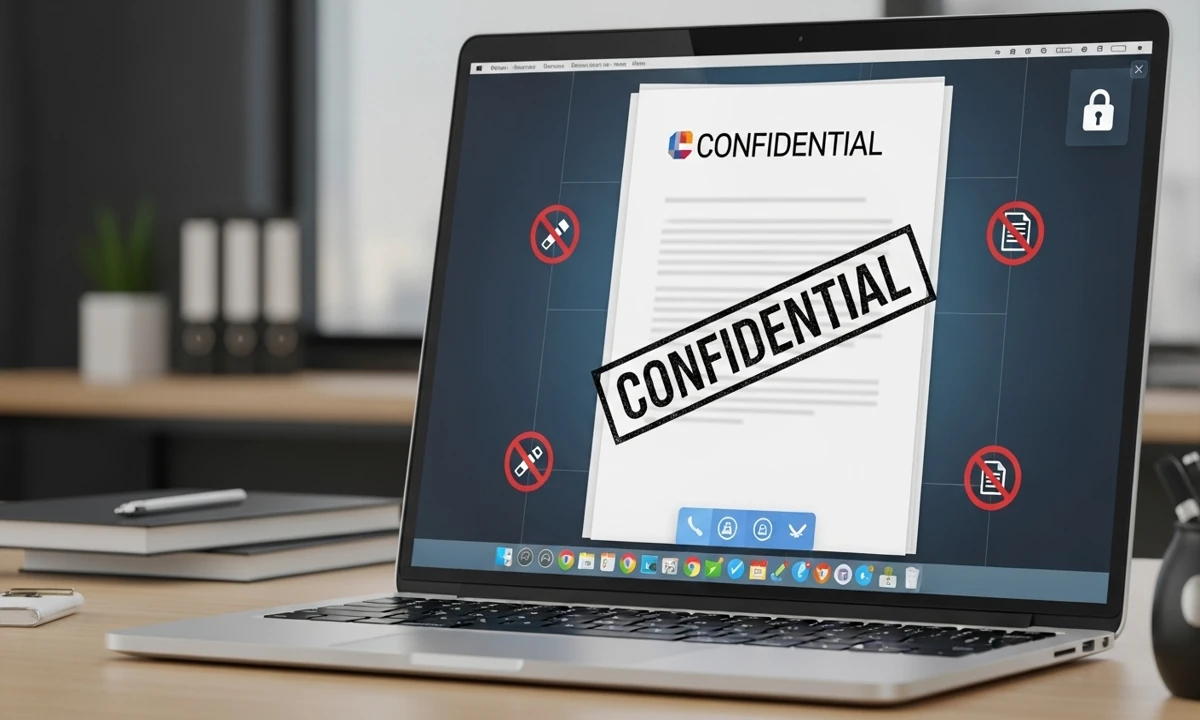
Passwords give one layer of safety but you can also control how people use your PDF. This is useful when you want to stop changes or limit what others can do.
Restrict Editing and Copying
You can set permissions so readers cannot copy text or make edits. This works well for research papers or legal files where the content must stay the same.
Here is a short example in Go with UniPDF. It shows how to set rules that block edits or copying:
permissions := security.PermPrinting | security.PermFillForms

encryptOptions := &model.EncryptOptions{

    Permissions: permissions,

}

err = pdfWriter.Encrypt([]byte(userPassword), []byte(ownerPassword), encryptOptions)
In this case printing and form fill are allowed but editing and copying are not. You can adjust the flags to fit your needs.
Add Watermarks
A watermark is text or a logo that sits on top of each page. It reminds people that the file is private. You can write words like Confidential or add your company logo. Even if someone shares the file the mark stays visible.
Use Secure PDF Viewing Tools
Some apps add an extra wall of security. They make sure the file only opens inside their reader. This stops screenshots and limits sharing. These tools are often used in schools or companies that handle private data.
Best Practices for PDF File Security
Before you finish, it helps to know some simple habits that keep your PDFs safe for a long time.
Always Update Passwords
Do not use the same password for months. Change it often so no one can guess it. Use a mix of letters, numbers, and symbols.
Use Strong Encryption Standards
Pick strong encryption like AES-256. It is hard to break and trust most systems today. Weak methods can fail and leave your file open.
Keep a Backup of Original Files
Save one copy without protection in a safe folder. If you forget a password or face a file error, you can still use the backup.
Combine Methods for Maximum Safety
One method is good but more than one is better. Add a password, limit editing, and also use a watermark. This makes the PDF hard to misuse.
Conclusion
Protecting PDF files does not have to be hard. A password, a digital signature and strict permissions are easy tools that add strong security. When you use them right, your files stay safe from edits and leaks.
Safe PDFs build trust with anyone who reads them and keeps your private data in the right hands.
You can also explore UniPDF security tools and examples to try protection in your own projects.