How to Open a PDF as a Word Document Without Losing Formatting



Opening a PDF in Word often looks simple but many face a common issue. The file may lose its look once it turns into a Word document. Text may shift. Images may break. Fonts may not match. This makes the file hard to read or edit.
When you convert PDF to Word, the goal is not only to get the text but also to keep the layout in place. A clean layout helps you read tables, work with charts and keep the document clear. If the format changes then you spend extra time fixing small errors.
The good news is that there are ways to open PDF in Word and keep the design safe. Some methods use built-in tools. Others need trusted software. With the right choice, you can keep fonts, spacing, and images without stress.
In this guide, we will share simple methods that let you convert PDF to Word without formatting loss.
Why Formatting Gets Lost in PDF to Word Conversion
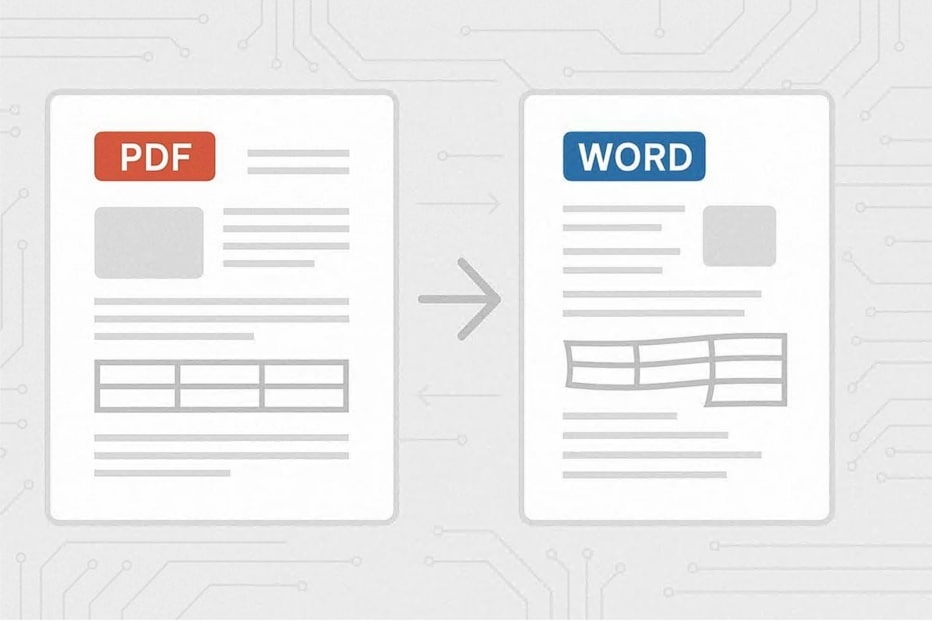
When you open a PDF in Word, the design may not look the same. This happens because a PDF stores text and layout in a fixed way. A PDF does not act like a Word file that flows with each edit. Instead, it saves each line and image in a set box on the page.
1. Fixed Layout of PDF
PDF files are made to look the same on every screen. The font size, the image place and the spacing stay locked. This fixed design is good for sharing but it makes edits harder.
When you convert PDF to Word, the locked layout breaks into free text blocks that Word tries to match.
2. Common Problems in Conversion
Many users face errors when they try PDF to Word conversion software. Lines of text may break at the wrong spot. A table may shift to another page.
Fonts may not show right if they do not exist in Word. Images may also move or change size. These small issues add up and make the document hard to use.
3. Why the Right Tool Matters
The choice of tools decides the result. A weak PDF to Word file converter may only copy text but lose the style. A strong tool reads both content and design.
It matches fonts, maps, tables and keeps the layout close to the original. This saves time and gives a clean editable document.
Method 1: Open PDF with Microsoft Word Directly
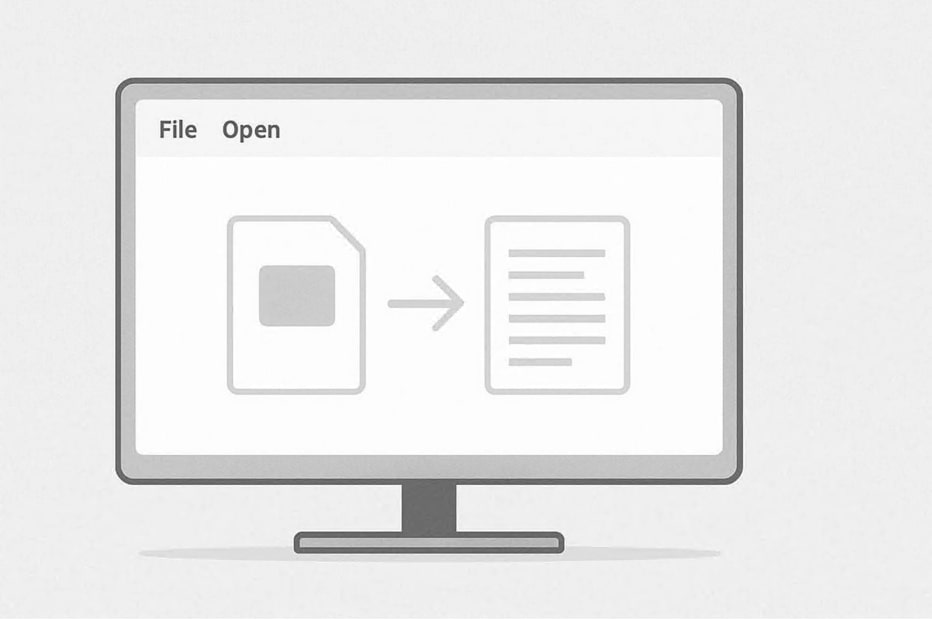
The easiest way to open a PDF in Word is to use Microsoft Word itself. You do not need extra tools for this.
Steps to follow
Open Microsoft Word on your computer.
Go to File > Open and pick the PDF you want.
Word will load the PDF and change it into a Word file.
What happens next
Word auto changes the PDF into a DOCX file. You can now edit text and move content.
Pros and cons
The main benefit is that it is free and simple. The downside is that some tables, fonts, or layouts may shift. This method works best for text-only files.
Method 2: Use Adobe Acrobat for Best Formatting Results
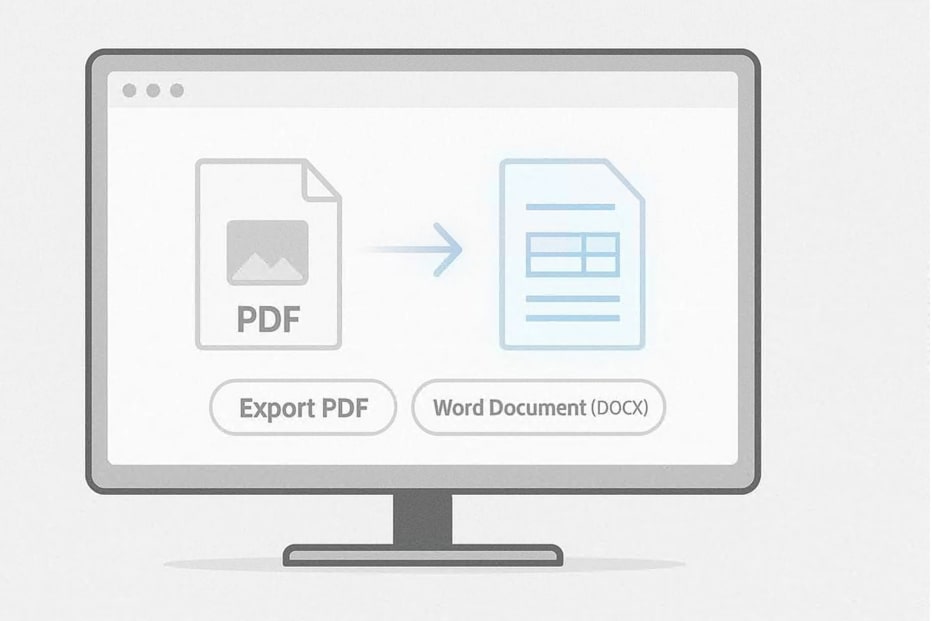
If you want to keep fonts, tables, and images safe then Adobe Acrobat is the best option. It has a strong PDF to Word file converter built inside.
Steps to follow
Open your PDF in Adobe Acrobat.
Click Export PDF on the right menu.
Pick Word Document (DOCX) as the output.
Save the file to your system.
Why choose this option
Adobe Acrobat is built for PDF to Word conversion without formatting loss. It reads layouts more closely than Word. This makes it good for files with tables, reports, or graphics. The only drawback is that it requires a paid plan.
Method 3: Use Online PDF to Word Tools
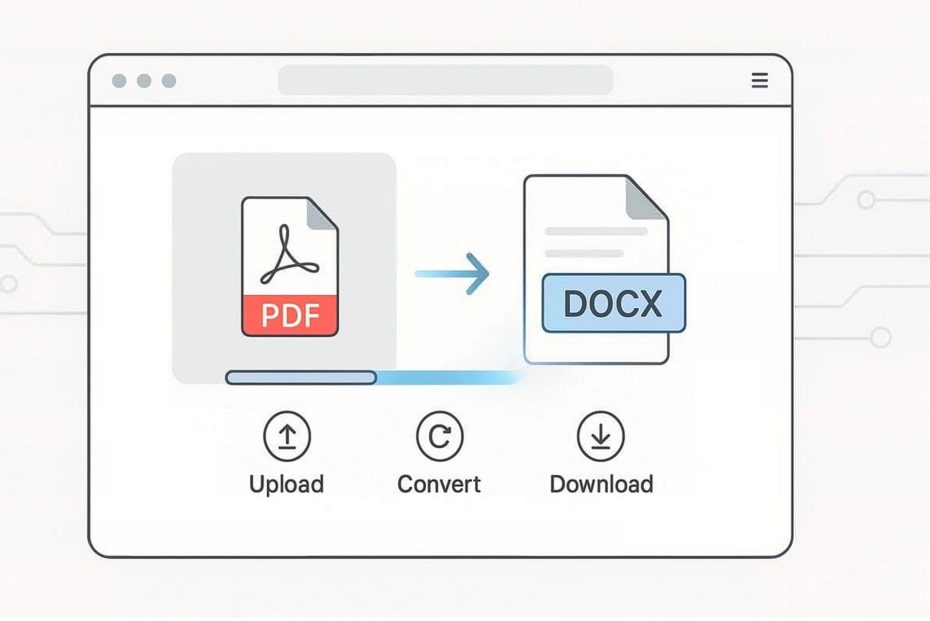
If you do not have Word or Acrobat, you can use a PDF to Word online tool. Many websites allow quick conversion.
Steps to follow
Go to a trusted online PDF to Word site.
Upload your PDF file.
Choose Word or DOCX as the format.
Download the converted file.
Best use cases
These tools are fast and useful for small files or quick edits. But never upload sensitive or private documents. Pick only well-known sites to keep your files safe.
Method 4: Converting Scanned PDFs with OCR
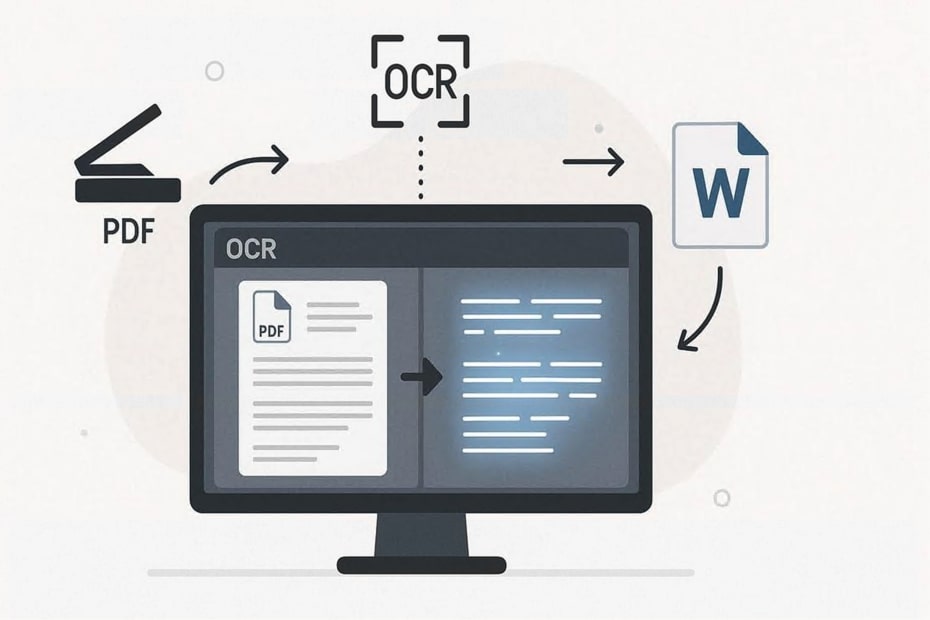
Some PDFs are scanned images of paper files. In these cases, you cannot copy text. To fix this, you need an OCR for PDF which stands for Optical Character Recognition.
Steps to follow
Open your scanned PDF in an OCR tool.
Run OCR to detect the text.
Export the result to Word.
When to use OCR
OCR works best for scanned contracts, forms, or books. It turns the image text into real editable text in Word. Free and paid OCR tools exist so you can pick the one that suits your needs
Best Practices to Maintain PDF Formatting in Word
When you change a PDF to Word, the layout can sometimes shift. To avoid problems, you can follow a few simple steps.
Always review fonts and text sizes once the file opens in Word.
Check tables and alignments to make sure they look the same.
Use Word styles to fix spacing or headings if they look odd.
Save the final file as DOCX so your edits remain safe.
Keep a backup of the original PDF before you start.
These small steps save time and help you keep the document neat
Conclusion
You now know the main ways to open a PDF as a Word document with formatting. Each method fits a different need.
For simple PDFs, you can use Microsoft Word.
For reports or designs with complex layouts, Adobe Acrobat works best.
For quick free edits, online tools are enough.
For scanned PDFs, an OCR tool gives you editable text.
The right choice depends on your file and your goal.
If you want more control over PDF conversion and editing, try UniDoc. It gives you powerful tools for PDF to Word conversion, PDF parsing, and secure document handling. You can explore UniDoc guides and examples to build your own solutions.