How to Convert Word and Excel to PDF in Go



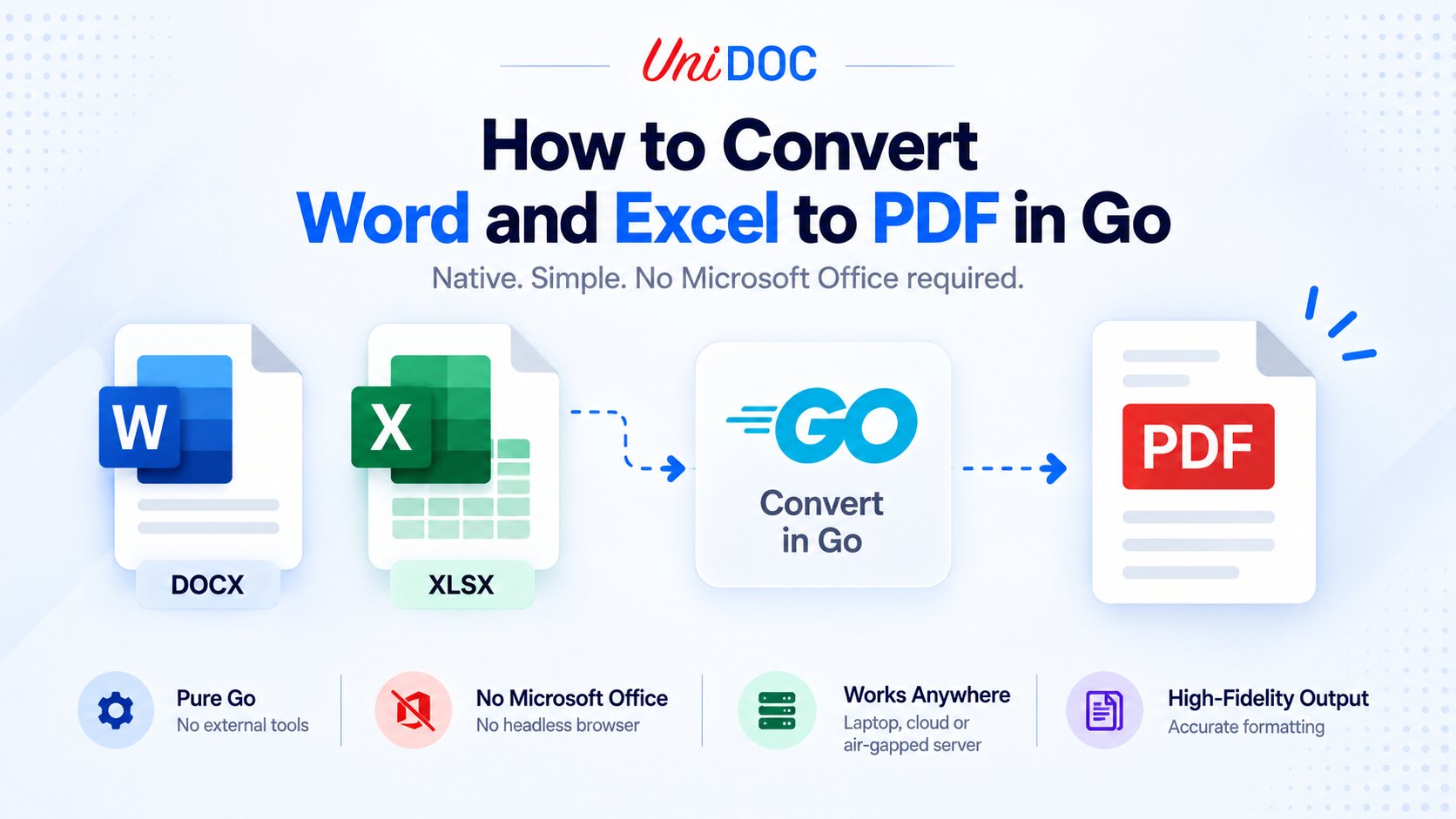
To convert Word (DOCX) and Excel (XLSX) files to PDF in Go, use UniOffice: a Word document converts in a single ConvertToPdf call, and an Excel workbook converts one sheet at a time. It all runs natively in Go, with no Microsoft Office, no LibreOffice, and no headless browser, so the same binary works on your laptop, in a container, or on an air-gapped server when you use an offline license key.
That last point is why this matters. Converting Office documents to PDF looks trivial until you do it on a server, where the usual tools drag something heavy into your deployment. This guide shows the native-Go way end to end: install, license, a complete runnable program that converts both a Word file and an Excel file, then the production details (per-sheet handling, batching, fonts) that decide whether the output is actually correct.
What UniOffice Converts, and What It Doesn’t
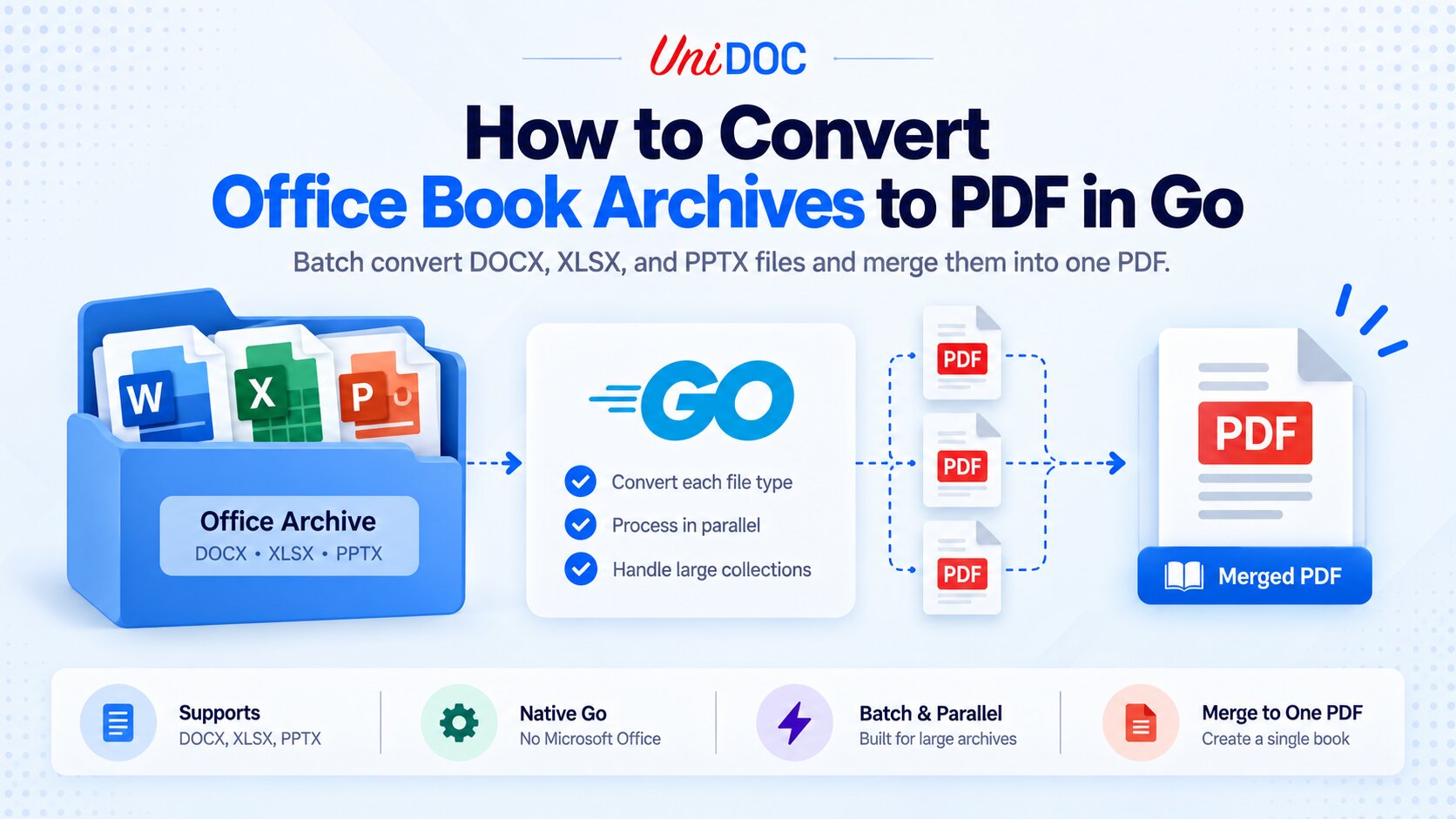
UniOffice works with the modern Office Open XML formats: .docx (Word), .xlsx (Excel), and .pptx (PowerPoint). It does not handle the legacy binary formats .doc, .xls, or .ppt. Those need a separate upstream conversion step (for example a LibreOffice or Office batch job) to save them as the modern format first; UniOffice takes it from there.
This guide covers Word and Excel. PowerPoint conversion uses the same pattern through the presentation and presentation/convert packages and is out of scope here; see the UniOffice examples for a PPTX sample.
The conversion is native Go. UniOffice parses the document and renders the PDF through UniPDF, both pure-Go libraries, so there is no external process, no CGO, and nothing to install on the host beyond your own binary and the fonts your documents use (more on fonts below). That is what makes it work in a container, a serverless function, or an air-gapped environment where you cannot run Office or a browser.
Step 1: Install
Prerequisites: Go 1.25 or newer. The current releases the go get commands below pull, UniOffice v2.14.0 and UniPDF v5.1.0, require Go 1.25. On Go 1.24 the toolchain will fetch 1.25 automatically, unless GOTOOLCHAIN=local (common in CI and air-gapped builds) blocks that and the build fails, so install Go 1.25 first in those environments. To stay on Go 1.24 instead, pin the last 1.24-compatible releases: go get github.com/unidoc/unioffice/[email protected] and go get github.com/unidoc/unipdf/[email protected].
Create a module and add the two libraries. Conversion uses UniOffice for the Office side and UniPDF for the PDF rendering, so you add both.
go mod init example.com/office2pdf

go get github.com/unidoc/unioffice/v2
go get github.com/unidoc/unipdf/v5

go mod tidy
Use the v2 import path for UniOffice and v5 for UniPDF. Older github.com/unidoc/unioffice (v1) examples you may find online are out of date.
Step 2: Get a License Key
UniOffice requires a license key to run. There are two kinds, and the difference matters for where you can deploy.
- Metered key (free tier available at cloud.unidoc.io): validates and reports usage against cloud.unidoc.io, so it needs outbound network access, and each conversion consumes credits. Good for development and cloud workloads.
- Offline key (available through unidoc.io/pricing): validates locally with no network calls, which is what an air-gapped or regulated deployment needs.
Expose the metered key as an environment variable:
export UNIDOC_LICENSE_API_KEY="your-key-here"
An offline key is loaded differently: call SetLicenseKey(contents, "Your Company Name") on both the UniOffice and UniPDF license packages (the same way the metered key is set on both), and the company name must match the name embedded in the signed key. Confirm your licensing terms with UniDoc for whether one offline key covers both products.
Step 3: A Complete Program That Converts Word and Excel
Here is a full, runnable main.go. It licenses both libraries, converts report.docx to report.pdf, and converts every sheet of data.xlsx to its own PDF named after the sheet. Put a report.docx and a data.xlsx in the same directory (paths are relative to where you run the program), then run go run . from that directory.
// main.go
package main

import (
    "fmt"
    "log"
    "os"
    "strings"

    uolicense "github.com/unidoc/unioffice/v2/common/license"
    "github.com/unidoc/unioffice/v2/document"
    docconvert "github.com/unidoc/unioffice/v2/document/convert"
    "github.com/unidoc/unioffice/v2/spreadsheet"
    xlsxconvert "github.com/unidoc/unioffice/v2/spreadsheet/convert"
    pdflicense "github.com/unidoc/unipdf/v5/common/license"
)

func init() {
    key := os.Getenv("UNIDOC_LICENSE_API_KEY")
    if err := uolicense.SetMeteredKey(key); err != nil {
        log.Fatalf("license (unioffice): %v", err)
    }
    if err := pdflicense.SetMeteredKey(key); err != nil {
        log.Fatalf("license (unipdf): %v", err)
    }
}

func main() {
    // 1. Word (DOCX) -> PDF: one document in, one PDF out.
    doc, err := document.Open("report.docx")
    if err != nil {
        log.Fatalf("open docx: %v", err)
    }
    defer doc.Close()

    if err := docconvert.ConvertToPdf(doc).WriteToFile("report.pdf"); err != nil {
        log.Fatalf("convert docx: %v", err)
    }
    fmt.Println("wrote report.pdf")

    // 2. Excel (XLSX) -> PDF: one PDF per sheet, named after the sheet.
    wb, err := spreadsheet.Open("data.xlsx")
    if err != nil {
        log.Fatalf("open xlsx: %v", err)
    }
    defer wb.Close()

    for _, s := range wb.Sheets() {
        out := "data_" + safeName(s.Name()) + ".pdf"
        if err := xlsxconvert.ConvertToPdf(&s).WriteToFile(out); err != nil {
            log.Fatalf("convert sheet %q: %v", s.Name(), err)
        }
        fmt.Println("wrote", out)
    }
}

// safeName turns a sheet name into a filename-safe string.
func safeName(name string) string {
    return strings.Map(func(r rune) rune {
        switch r {
        case '/', '\\', ':', '*', '?', '"', '<', '>', '|', ' ':
            return '_'
        }
        return r
    }, name)
}
Run it and you should see report.pdf plus one PDF per sheet, named data_<sheet>.pdf. The next two sections explain why Word and Excel are handled differently and why the imports use aliases.
How Word Conversion Works
Word is the simple case. You open the .docx with the document package and hand it to ConvertToPdf from the document/convert package, which renders the whole document to a single PDF, carrying over layout, tables, images, headers, and footers.
doc, err := document.Open("report.docx")
if err != nil {
    return err
}
defer doc.Close()

if err := docconvert.ConvertToPdf(doc).WriteToFile("report.pdf"); err != nil {
    return err
}
One document produces one PDF. There is nothing per-page or per-section to manage; the converter handles pagination.
How Excel Conversion Works
Excel is where people trip up, because a workbook is not a single page. It is a set of sheets, each with its own dimensions, print area, and page setup, so UniOffice converts per sheet, not per workbook. You open the workbook with the spreadsheet package, iterate wb.Sheets(), and convert each sheet with ConvertToPdf from the spreadsheet/convert package.
wb, err := spreadsheet.Open("data.xlsx")
if err != nil {
    return err
}
defer wb.Close()

for _, s := range wb.Sheets() {
    out := "data_" + safeName(s.Name()) + ".pdf"
    if err := xlsxconvert.ConvertToPdf(&s).WriteToFile(out); err != nil {
        return err
    }
}
That produces one PDF per sheet, which is usually what you want, since a wide financial sheet and a narrow summary sheet do not belong on the same page size. Each sheet’s own print area and page setup drive its output. If you need a single combined file, convert each sheet and then merge the results with UniPDF’s merge API, rather than expecting one call to flatten the whole workbook.
Why the import aliases? Both packages are named convert (document/convert and spreadsheet/convert), so importing both in one file collides. The complete program above aliases them as docconvert and xlsxconvert. If you only convert one format in a given file, you can import that one package plainly as convert.
Structuring It for Production
For a service that ingests mixed files, wrap the two paths in one function that dispatches on the extension, then call it per file in a batch. Note the function is named convertFile, not ConvertToPdf, to avoid confusion with the library call it uses.
// convert.go
package main

import (
    "fmt"
    "path/filepath"
    "strings"

    "github.com/unidoc/unioffice/v2/document"
    docconvert "github.com/unidoc/unioffice/v2/document/convert"
    "github.com/unidoc/unioffice/v2/spreadsheet"
    xlsxconvert "github.com/unidoc/unioffice/v2/spreadsheet/convert"
)

// convertFile routes a .docx or .xlsx file to the right converter.
// For .docx it writes outDir/name.pdf; for .xlsx it writes one PDF per sheet.
func convertFile(inputPath, outDir string) error {
    base := strings.TrimSuffix(filepath.Base(inputPath), filepath.Ext(inputPath))

    switch strings.ToLower(filepath.Ext(inputPath)) {
    case ".docx":
        doc, err := document.Open(inputPath)
        if err != nil {
            return fmt.Errorf("open %q: %w", inputPath, err)
        }
        defer doc.Close()
        out := filepath.Join(outDir, base+".pdf")
        if err := docconvert.ConvertToPdf(doc).WriteToFile(out); err != nil {
            return fmt.Errorf("convert %q: %w", inputPath, err)
        }
        return nil

    case ".xlsx":
        wb, err := spreadsheet.Open(inputPath)
        if err != nil {
            return fmt.Errorf("open %q: %w", inputPath, err)
        }
        defer wb.Close()
        for _, s := range wb.Sheets() {
            out := filepath.Join(outDir, fmt.Sprintf("%s_%s.pdf", base, safeName(s.Name())))
            if err := xlsxconvert.ConvertToPdf(&s).WriteToFile(out); err != nil {
                return fmt.Errorf("convert %q sheet %q: %w", inputPath, s.Name(), err)
            }
        }
        return nil

    default:
        return fmt.Errorf("unsupported format %q (only .docx and .xlsx)", filepath.Ext(inputPath))
    }
}
In a batch, log failures and continue rather than aborting, so one bad file does not stop the run. Use log.Printf, not log.Fatalf: log.Fatalf calls os.Exit, which skips deferred Close() calls, and Close() is what releases resources and removes temporary files.
// batch.go
package main

import "log"

func convertAll(files []string, outDir string) {
    for _, f := range files {
        if err := convertFile(f, outDir); err != nil {
            log.Printf("skip %s: %v", f, err)
            continue
        }
    }
}
Getting the Output Right: Fonts and Options (Word)
Two things decide whether a Word PDF matches the original. Both apply to the document/convert converter; the spreadsheet converter’s Options exposes only DefaultPageSize, so its output is driven by each sheet’s own print area and page setup instead.
Fonts
If a document uses fonts that are not embedded and not available to the converter, text falls back to a substitute or, for non-Latin scripts such as CJK, may not render at all. Register the fonts you need before converting, and make sure their license permits embedding. You can register a whole directory or map a specific font name to a specific file. The example below substitutes ZCOOL XiaoWei (a different, freely embeddable typeface) wherever a document asks for SimHei; use whatever files you have the right to embed.
// fonts.go
package main

import (
    "github.com/unidoc/unioffice/v2/document/convert"
    "github.com/unidoc/unipdf/v5/model"
)

// registerFonts must run before any conversion. UniOffice's document and
// spreadsheet converters both delegate to the same internal font registry, so
// registering here also covers Excel output; spreadsheet/convert exposes the
// same RegisterFont if you prefer to call it there.
func registerFonts() error {
    // Register every font in a directory.
    if err := convert.RegisterFontsFromDirectory("fonts"); err != nil {
        return err
    }
    // Map a font name a document requests to a file you can embed.
    // This is a substitution: ZCOOL XiaoWei stands in for SimHei.
    f, err := model.NewCompositePdfFontFile("fonts/ZCOOLXiaoWei-Regular.ttf")
    if err != nil {
        return err
    }
    convert.RegisterFont("SimHei", convert.FontStyle_Regular, f)
    return nil
}
Call registerFonts() once at startup, before the first conversion:
func main() {
    if err := registerFonts(); err != nil {
        log.Fatalf("register fonts: %v", err)
    }
    // ... conversions ...
}
Conversion Options
For Word documents that use fields, such as merge fields, enable ProcessFields so their values render into the output. One caveat that bites people: EnableFontSubsetting defaults to on when you pass no options, but a struct literal sets any field you omit to its zero value, so leaving it out sets it to false and produces larger PDFs. Set it explicitly.
co := &convert.Options{
    ProcessFields:        true,
    EnableFontSubsetting: true, // zero value is false; keep the default behavior
}
c := convert.ConvertToPdfWithOptions(doc, co)
The practical rule: convert a representative sample of your real documents first, open the PDFs, and check fonts and layout before you widen the pipeline. Most fidelity issues come from missing fonts; keep UniOffice updated, since conversion accuracy improves with each release.
Production Notes
- Pure Go, in-process. No Microsoft Office, no LibreOffice, no headless browser, no sidecar. The converter compiles into your binary and cross-compiles like any Go program, which is what makes it viable in containers and air-gapped environments.
- Air-gapped needs an offline key. The metered key reports usage over the network, so it will not work air-gapped. Use an offline license key for those deployments.
- Ship your fonts. UniOffice uses the host’s system fonts to resolve typefaces, but slim, distroless, and scratch container images have few or none. Bundle the fonts your documents need into the image and register them (see the fonts section), or text falls back to substitutes.
- Modern formats only.
.docx,.xlsx,.pptx. Legacy.doc/.xls/.pptneed a separate upstream step (LibreOffice or Office) to save them as the modern format first. - Two libraries, one metered key. Both UniOffice and UniPDF must be licensed; the same metered key sets both. For offline keys, set the key on both packages and confirm your terms with UniDoc.
- Excel is per sheet. Plan for one PDF per sheet, and merge afterward with UniPDF if you need a single file.
- Fail per file in batches. Log the failing file and continue with
log.Printf; neverlog.Fatalfinside a batch, or deferredClose()(and its temp-file cleanup) is skipped.
Frequently Asked Questions
How do you convert a Word document to PDF in Go?
Open the file with UniOffice’s document.Open, pass it to ConvertToPdf from the document/convert package, and call WriteToFile. It runs natively in Go with no Microsoft Office or external process, and supports layout, tables, images, and headers.
How do you convert an Excel file to PDF in Go?
Open the workbook with spreadsheet.Open, iterate wb.Sheets(), and convert each sheet with ConvertToPdf from the spreadsheet/convert package. Excel conversion is per sheet, so you get one PDF per sheet; merge them with UniPDF afterward if you need a single file.
Do you need Microsoft Office installed to convert Office files to PDF in Go?
No. UniOffice is pure Go and renders through UniPDF in-process, so there is no dependency on Microsoft Office, LibreOffice, or a headless browser. The conversion runs wherever your Go binary runs, provided the fonts your documents use are available.
Can UniOffice convert .doc or .xls files?
No. UniOffice supports the modern Office Open XML formats (.docx, .xlsx, .pptx) only, not the legacy binary formats (.doc, .xls, .ppt). Convert legacy files to the modern format first with a separate upstream tool.
My PDF has wrong or missing characters. What is wrong?
Almost always a font problem. The document uses a font that is not embedded and not registered, so the converter substitutes or drops glyphs, which is most visible with CJK and other non-Latin scripts. Register the needed fonts before converting (and, in a container, make sure those font files ship with the image).
How do I convert both Word and Excel in the same program?
Import both convert packages under aliases (for example docconvert and xlsxconvert) to avoid the name collision, then dispatch on the file extension, as in the production example above.
Further Reading
- Word to PDF Conversion Made Simple in Golang for a walkthrough focused specifically on Word documents
- How to Merge & Split PDF Files in Golang Using UniPDF for combining per-sheet Excel PDFs into one file
- UniOffice Document to PDF guide and the spreadsheet conversion guide for the official docs
- UniOffice product overview for the full DOCX, XLSX, and PPTX feature set
- UniOffice GitHub examples repository for runnable conversion, fonts, and options examples
Conclusion
Converting Word and Excel to PDF in Go does not require Microsoft Office, a browser, or a conversion server. Install UniOffice and UniPDF, set a license key, and a Word file becomes a single ConvertToPdf call while an Excel workbook becomes a short loop over its sheets, all in your Go binary. The things to get right are per-sheet handling for spreadsheets, an offline key for air-gapped deployments, and shipping and registering the fonts your documents use.
UniOffice gives Go teams that conversion in one pure-Go dependency with commercial support and no external runtime in the deployment path. Copy the complete program above, point it at a real document, and widen the pipeline once the output looks right.
Convert your Office documents to PDF in Go with UniOffice. Start a free trial or read the docs.